
Upload a document
Getting a PDF into your template library.
A PDF. If your document is in Word, save or export it as PDF first — most versions have that under File.
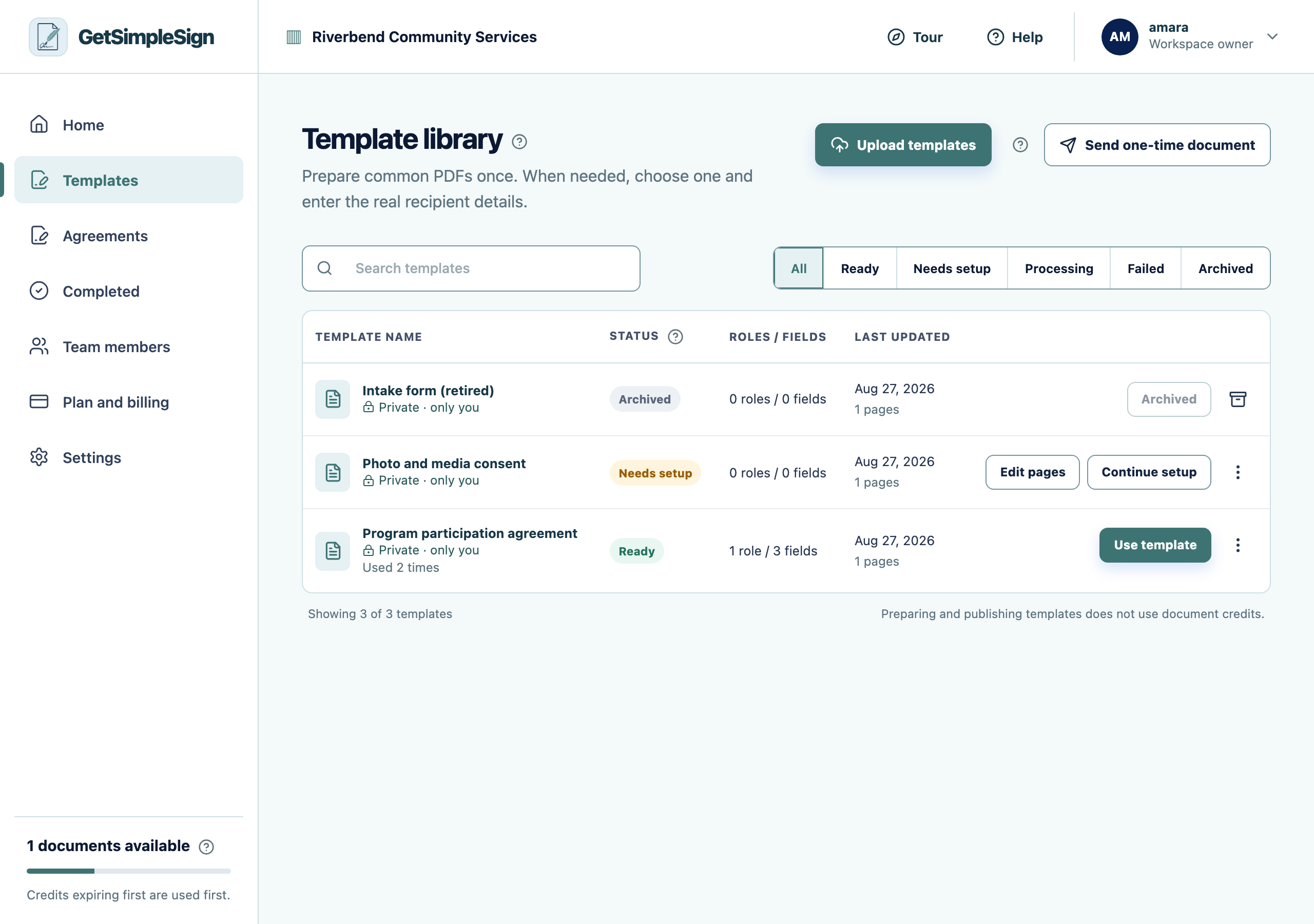
Open Templates and press Upload templates. You can also drag files onto the page.
 123
123The Template library, listing three templates with their statuses: Ready, Needs setup, and Archived. - 1Upload templates takes a PDF from your computer.
- 2Ready means the template can be sent. Needs setup means roles or fields are still missing.
- 3Use template starts a send from this document.
Choose one or more PDFs. Each becomes its own template.
Wait a moment while the pages are read. The status shows Processing, then Needs setup.
Your document appears in the library with the status Needs setup, which means it is in and ready to be prepared.
The status says Failed. The file may be password-protected, corrupt, or not really a PDF. Open it on your own machine first — if it will not open there either, that is the problem.
The file is too large. Very large scans are usually the cause. Scanning at 200 dpi in black and white instead of 600 dpi in colour typically shrinks a document by a factor of ten and loses nothing that matters for signing.