

Reminders and expiry
Chasing somebody without having to remember to.
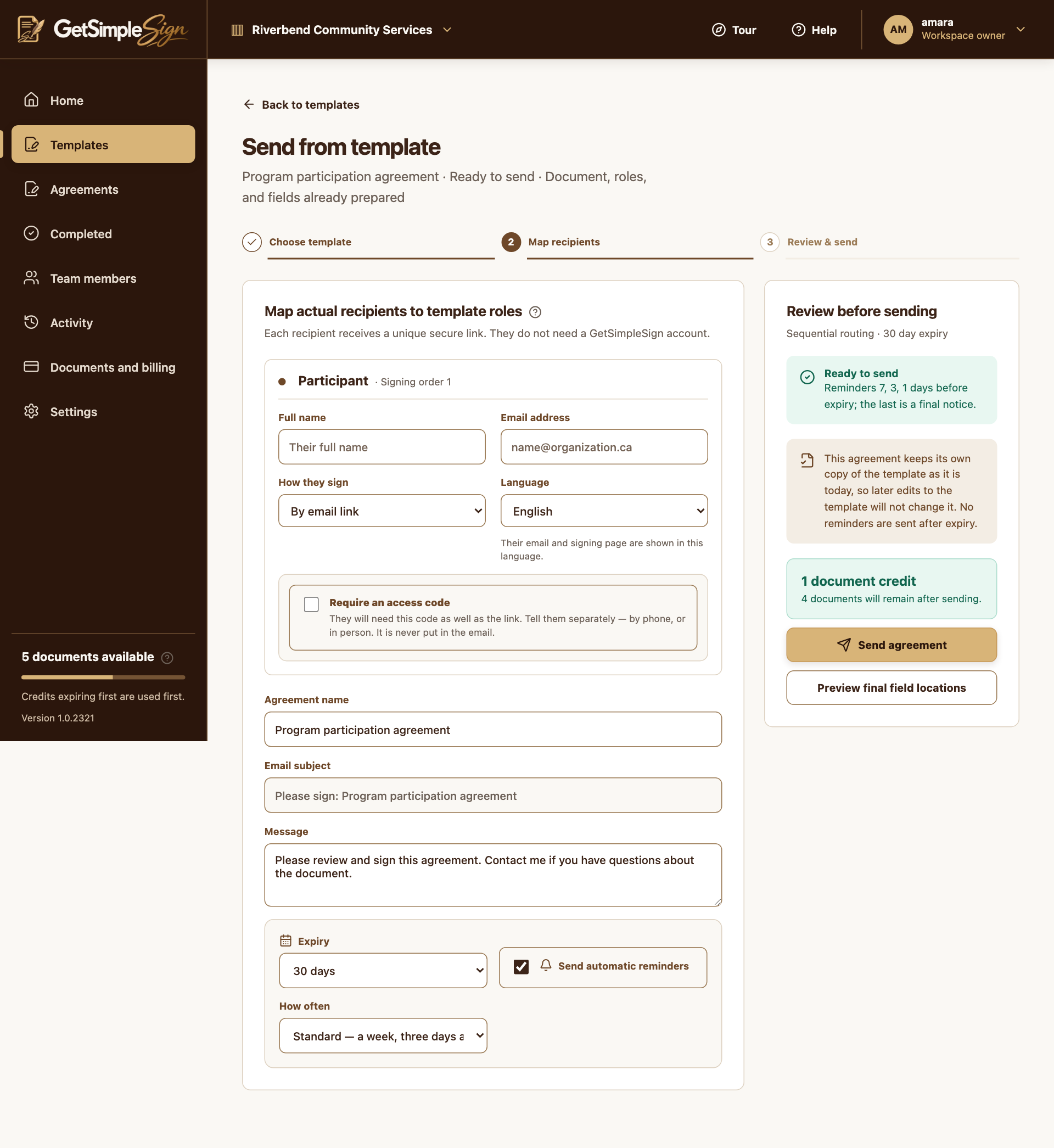
On a template send, choose an expiry period or a custom expiry date. One-time sends offer their own expiry choices.
 123
The send screen, with the recipient's name and email, how they sign, the language, the option to require an access code, the agreement name, message, expiry and reminders. Screenshots use a demonstration workspace. - 1Enter the real recipient for this reusable signer role.
- 2Add a separate signing access code if needed.
- 3Review expiry and reminder settings before sending.
Choose a reminder preset, turn reminders off, or enter custom days before expiry. Standard reminders are seven, three and one day before expiry; only future dates are scheduled.
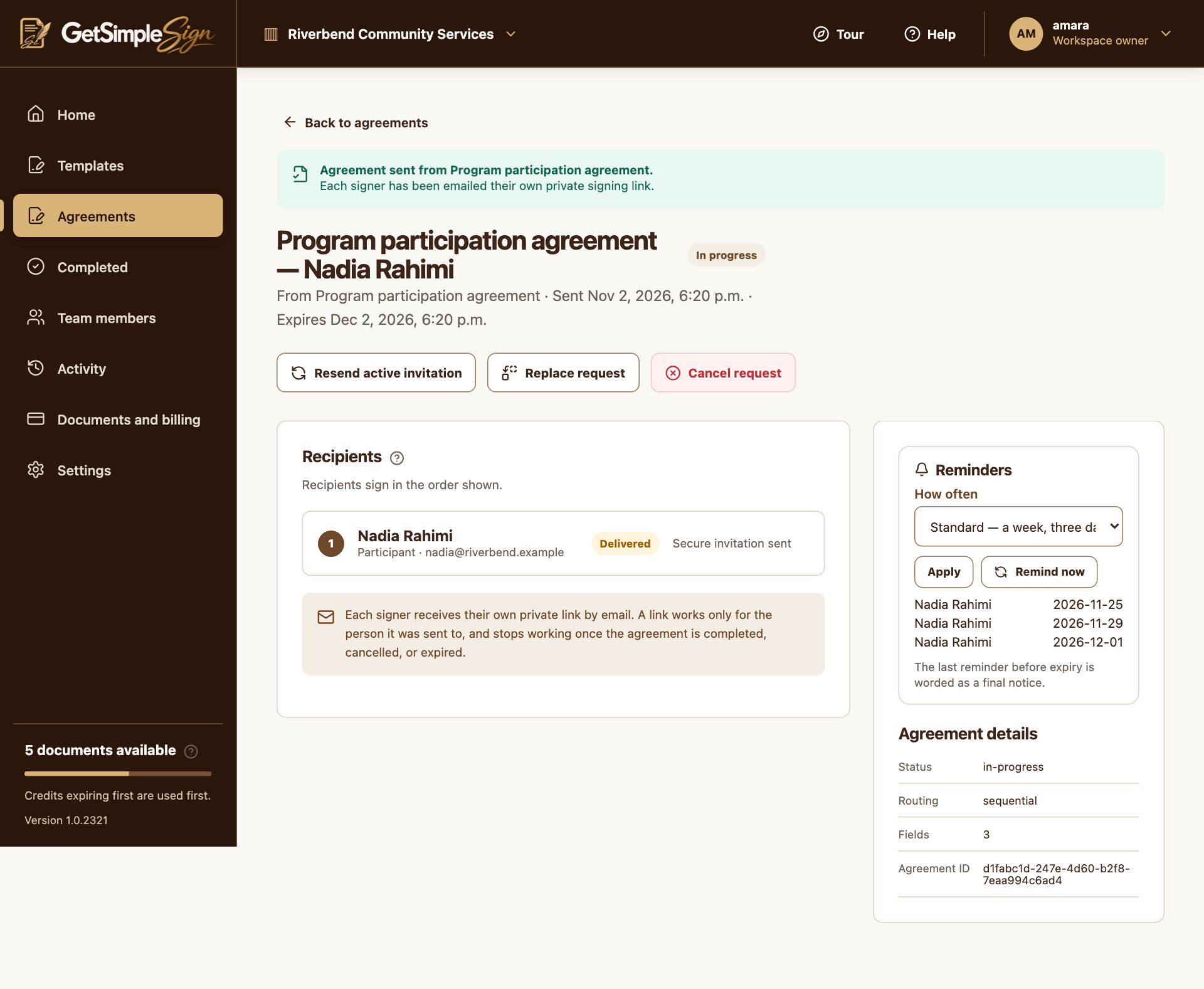
For an active email-signing request, open its Reminders panel. Select a schedule and press Apply to change future reminders.
 12
An agreement in progress, showing the recipient, their status, and the controls to resend, replace or cancel. Screenshots use a demonstration workspace. - 1Check each recipient’s signing status.
- 2Review a confirmation before cancelling an active request.
Use Remind now to contact active email signers immediately. Sequential signers waiting for their turn are not chased before they can sign.
The agreement shows the configured schedule and reminder delivery state.
After expiry, the request cannot be continued simply by emailing the same link. Prepare a new request if it is still needed.
Cancel an unnecessary agreement to stop its outstanding invitations and reminders.