
Access codes
Requiring a code you gave the person separately, as well as the emailed link.
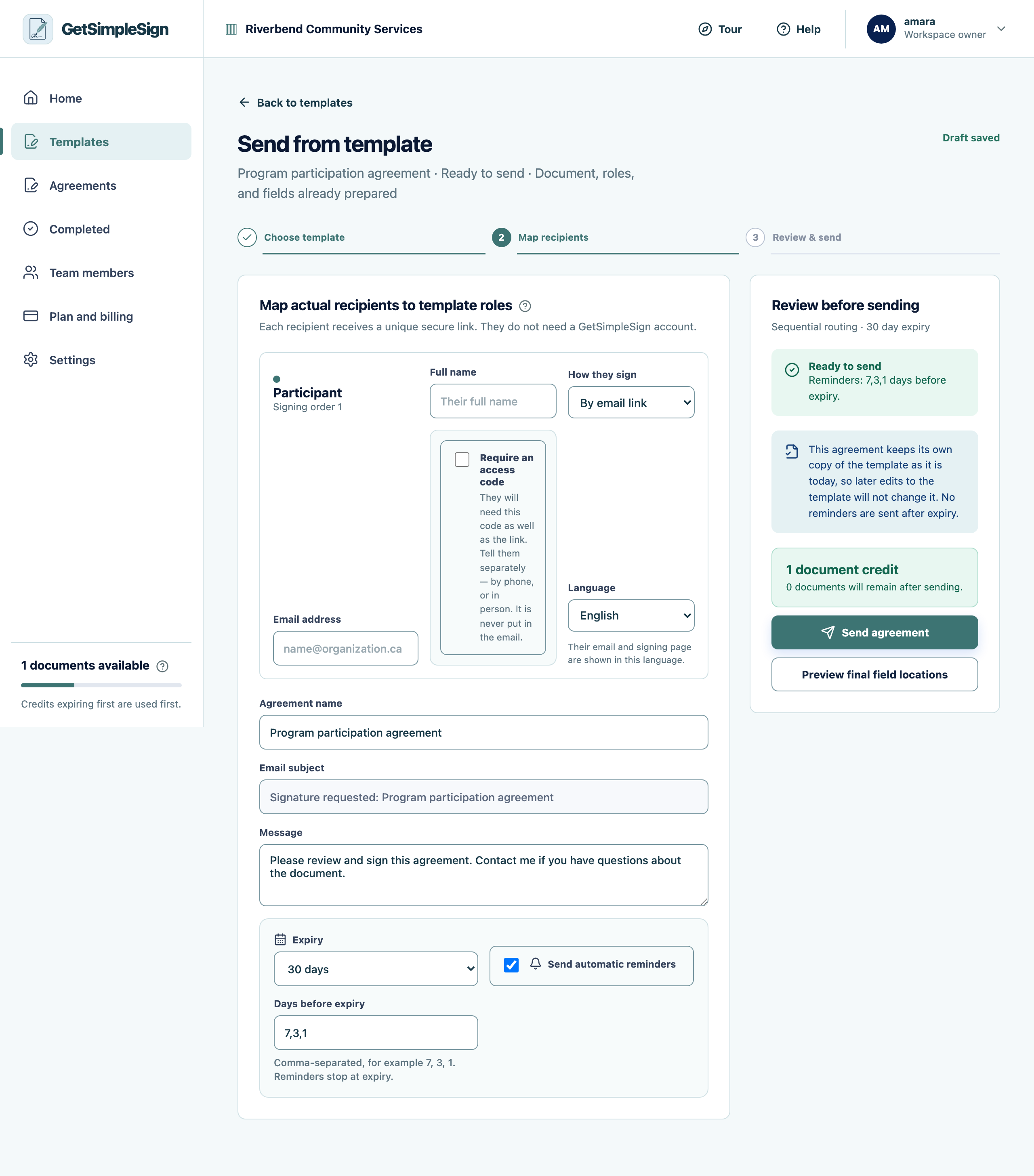
On the send screen, turn on Require an access code beside the recipient.
 123
123The send screen, with the recipient's name and email, how they sign, the language, the option to require an access code, the agreement name, message, expiry and reminders. - 1The person who will sign. Type their name — the agreement name and greeting follow it.
- 2Require an access code when the mailbox might be shared. Tell them the code separately; it is never put in the email.
- 3How long the link works, and when reminders go out.
A six-digit code is suggested. Keep it, or type your own — but not 123456 or 000000, which are refused.
Note down how you will tell them, in the field beside it. That note is for you and your colleagues; the signer never sees it and it is never emailed.
Tell them the code separately: on the phone, in the appointment you are already having, or in person. Never in an email — a code sent alongside the link proves nothing the link did not already prove.
Send. Their link now asks for the code before the document opens.
When they open the link they see a code screen rather than the document, and the completion record afterwards says the code was used.
They have locked themselves out. Five wrong tries closes the link for fifteen minutes, and you are emailed when it happens. Open the agreement and press Let them try again.
They have lost the code. Open the agreement and press Change the code, then tell them the new one. Their existing link keeps working.
We cannot tell them the code. Not "will not" — we do not have it. Only the hash is stored, which is the point.