
Send from a template
The everyday case: a document you have prepared, going to one person.
A template with the status Ready, and at least one document credit.
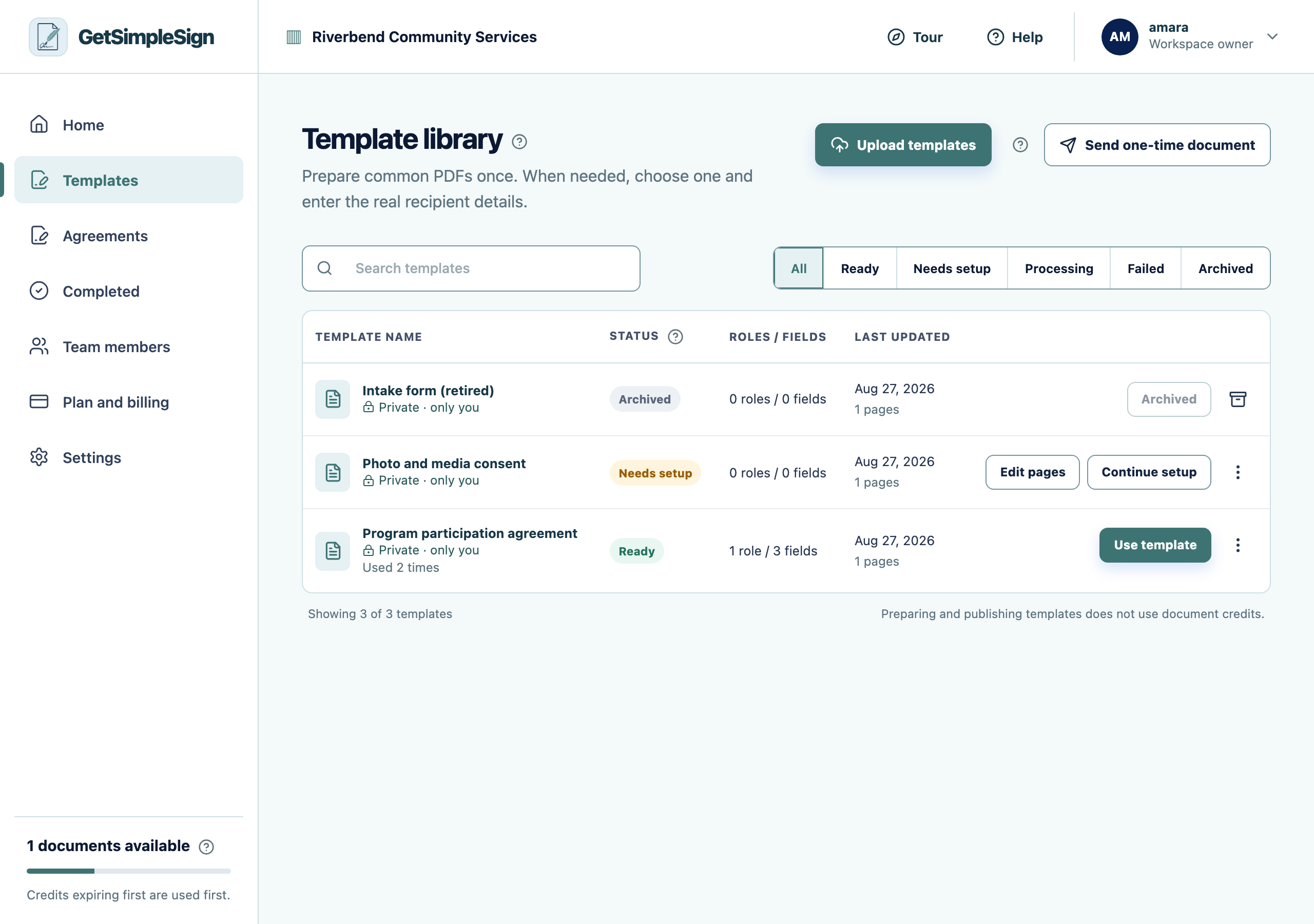
In the template library, press Use template.
 123
123The Template library, listing three templates with their statuses: Ready, Needs setup, and Archived. - 1Upload templates takes a PDF from your computer.
- 2Ready means the template can be sent. Needs setup means roles or fields are still missing.
- 3Use template starts a send from this document.
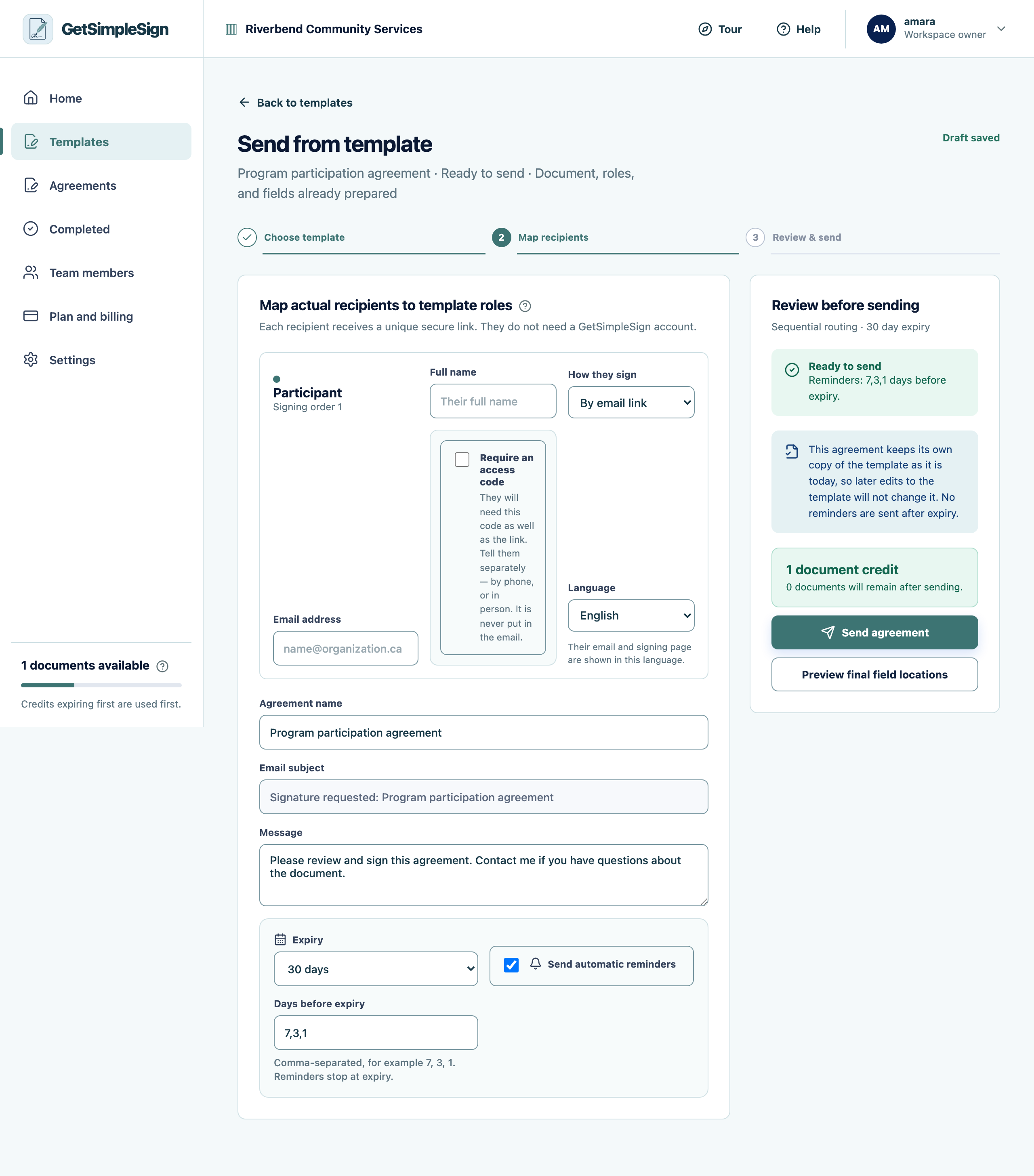
Type the person’s full name and email address. The agreement name and the greeting follow what you type, so check them if you change your mind about the recipient.
 123
123The send screen, with the recipient's name and email, how they sign, the language, the option to require an access code, the agreement name, message, expiry and reminders. - 1The person who will sign. Type their name — the agreement name and greeting follow it.
- 2Require an access code when the mailbox might be shared. Tell them the code separately; it is never put in the email.
- 3How long the link works, and when reminders go out.
Choose how they sign: by email link, or in person on your device. See In-person signing.
Choose the language they read. This changes the whole signing screen and the email, not just a label.
Turn on an access code if the mailbox might be shared. See Access codes.
Set when the link should stop working, and when reminders go out.
Press Send agreement.
The agreement appears under Agreements, and the recipient has an email with their own link.
You are warned that an address looks like a sample. Read it again — an address like [email protected] is almost always left over from a demonstration. You can send anyway if it really is right.
It says no credits are available. See How document credits work.
You sent it to the wrong person. Cancel it and send again. See Cancelling an agreement.