

Authenticator backup codes
Keep a way into your account if your phone is unavailable.
Save the backup codes when two-factor setup creates them. Copy or Download stores your own set.
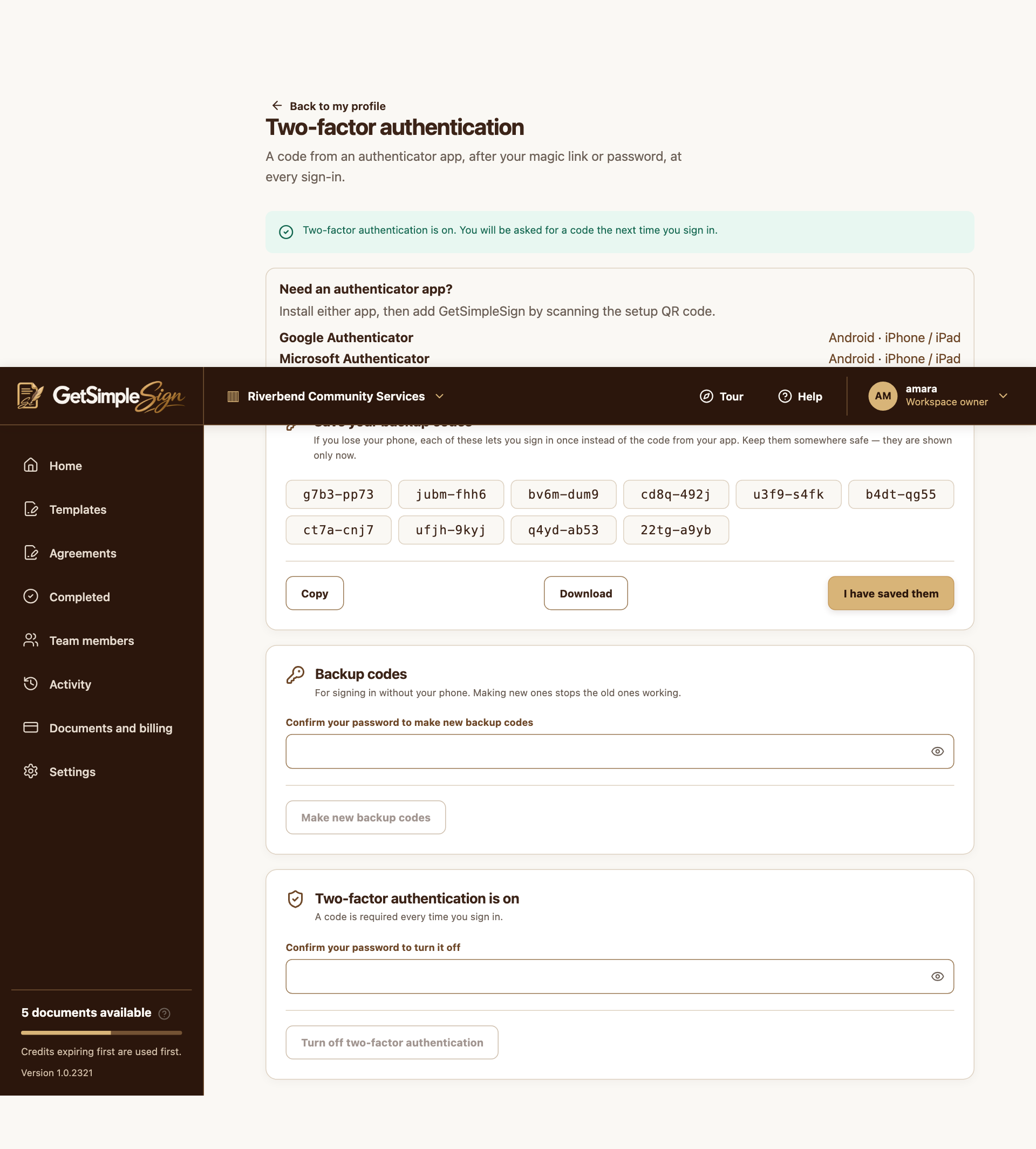
Backup codes are shown once after setup. These demonstration codes are not for a real account. Screenshots use a demonstration workspace. At a sign-in code prompt, choose Use a backup code and enter one unused code instead of the six-digit authenticator code.
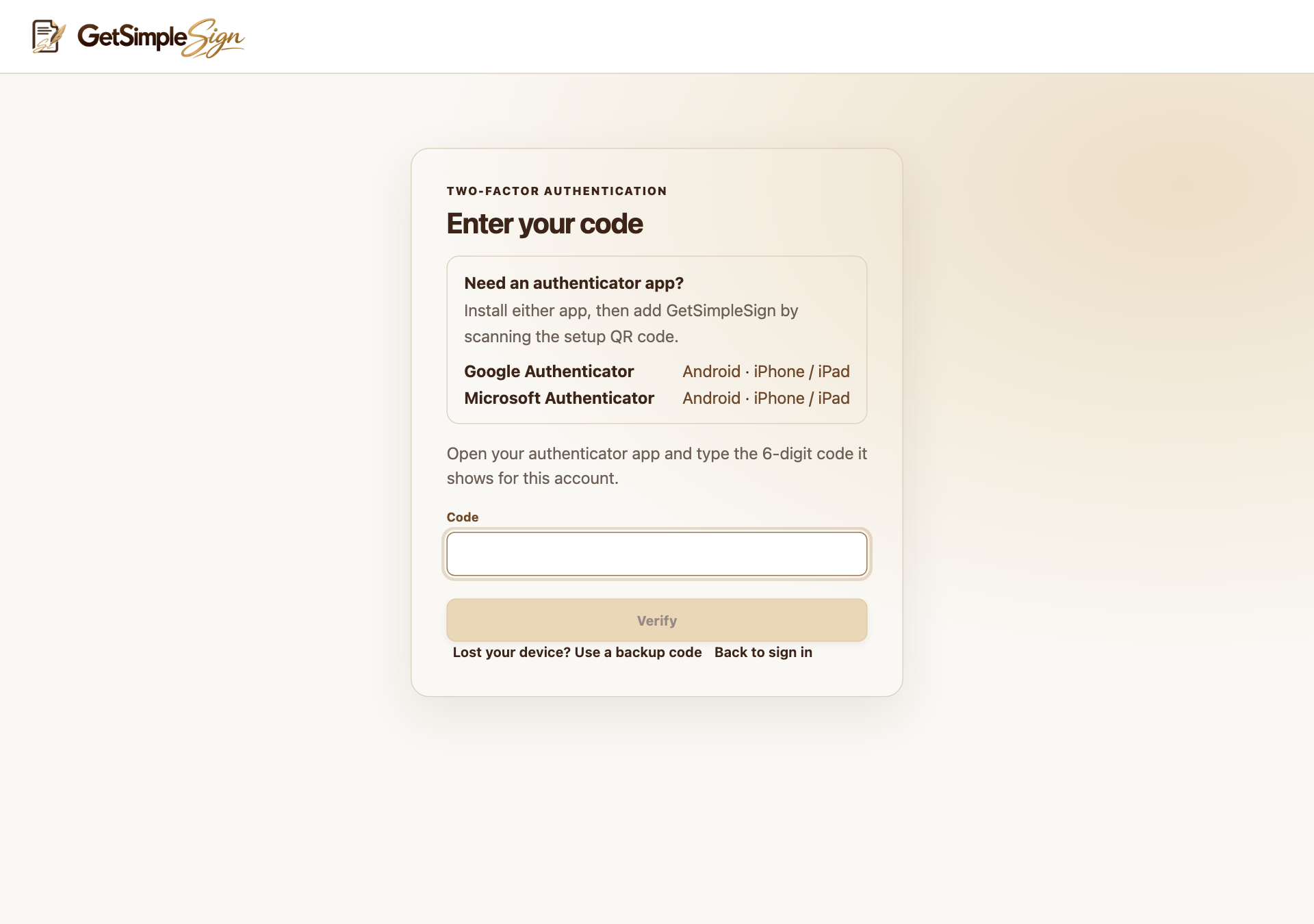
After a magic link or password, an enabled authenticator requires a code or unused backup code. Screenshots use a demonstration workspace. To replace the set, open Two-factor authentication, confirm your password under Backup codes, and choose Make new backup codes. Older codes stop working.
To turn two-factor authentication off, confirm your password in that screen and use Turn off two-factor authentication.
Each backup code works once. A replacement set invalidates the previous set.
Keep your codes away from the mailbox used for magic links when possible. Do not use demonstration codes shown in these screenshots.
If you have neither the authenticator nor backup codes, contact support. A magic link alone does not bypass an enabled authenticator.