

Find, rename, archive or edit a template
Keep your library usable without changing existing sent agreements.
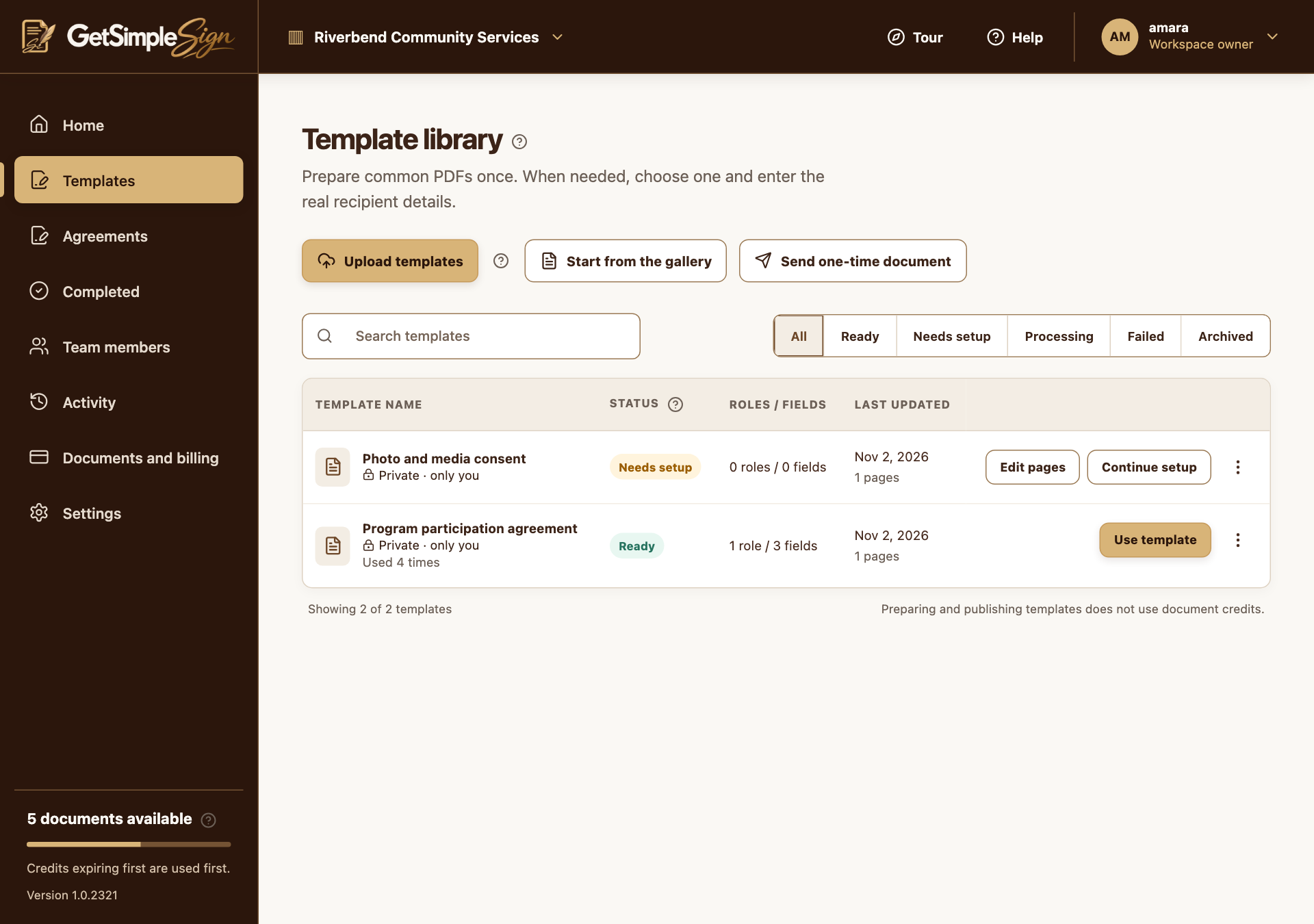
Use Search templates and the status filters to narrow the list. Choose Load more when there are additional results.
 123
Template library with search, status filters, uploads, gallery and template row actions. Screenshots use a demonstration workspace. - 1Upload supported PDF, image or Office documents.
- 2Filter templates by status.
- 3Use a Ready template to enter the real recipients.
Open a row’s actions menu to see the available Rename, Edit roles and fields, Archive or other controls.
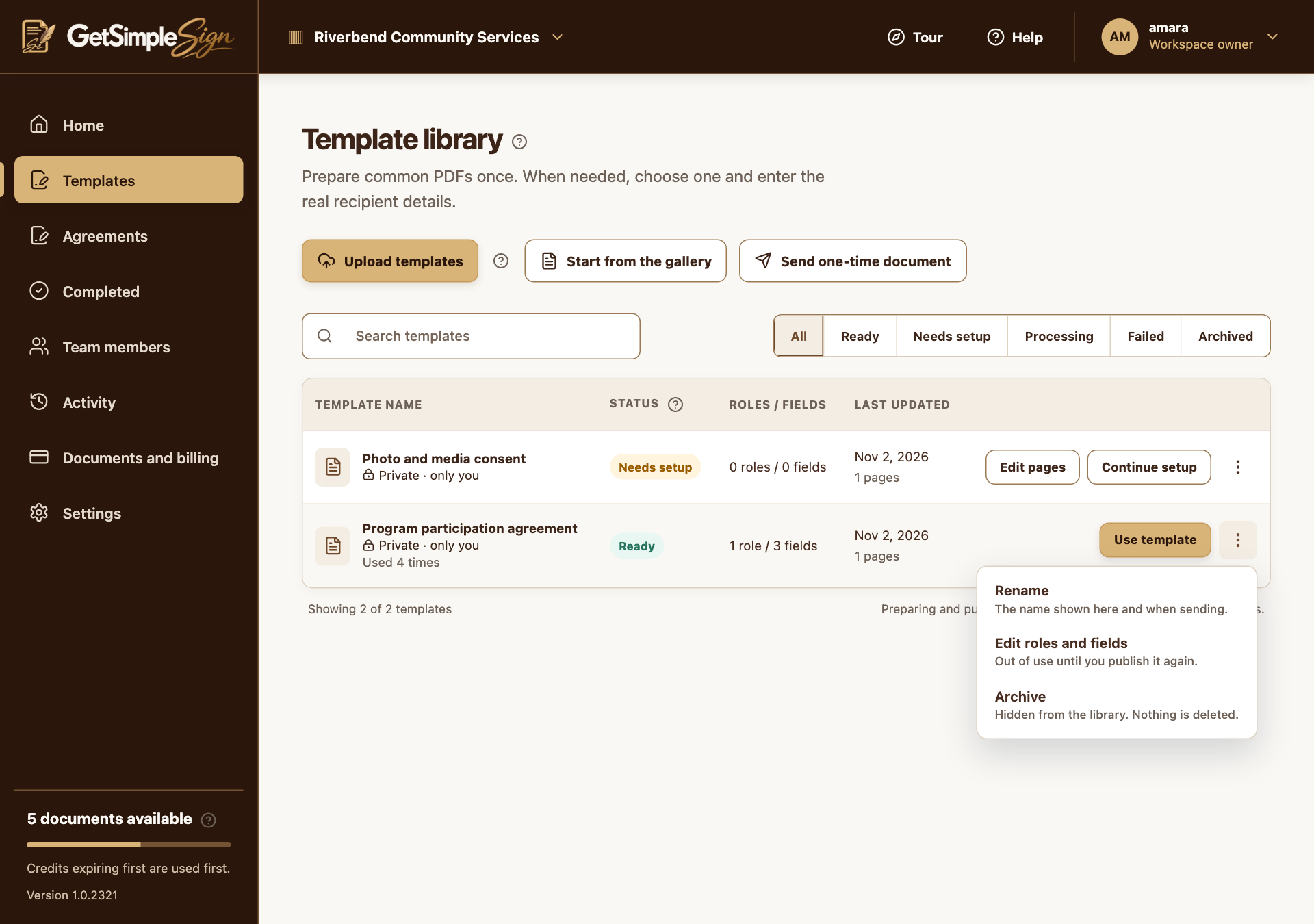
A template’s row menu provides its available download, rename, edit and archive actions. Screenshots use a demonstration workspace. Editing a Ready template asks for confirmation and returns it to setup. Review and publish again before sending.
Archive a template to put it away. Select the Archived filter and use Restore to bring it back.
Permanent deletion is offered for archived templates and requires confirmation. Converted uploads offer Download original beside the source filename. Final signed files are downloaded from the completed agreement.
The library reflects your search and changes. Agreements already sent retain the document used at their send time.
Workspace role and the template’s status affect which actions appear.
Deleting a template permanently cannot be undone from the library.