

Set up an authenticator
Add a six-digit code after your magic link or password.
Open Two-factor authentication from your account area. The same setup can appear after magic-link sign-in.
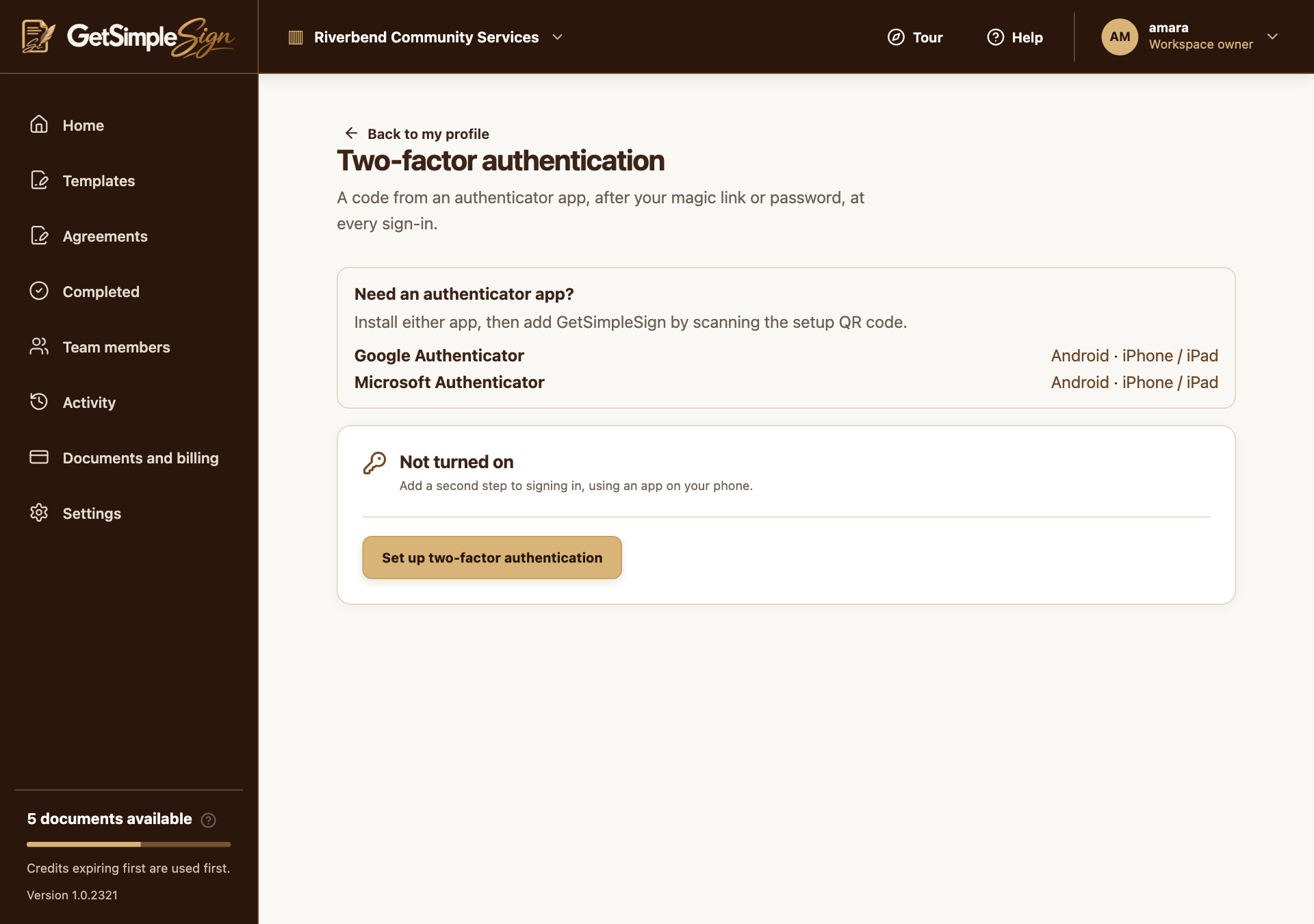
The authenticator screen includes Google and Microsoft app links for Android and iPhone or iPad. Screenshots use a demonstration workspace. Install Google Authenticator or Microsoft Authenticator using the Android or iPhone / iPad links on the screen.
Choose Set up two-factor authentication. Scan your own QR code or enter your setup key in the authenticator.
The pictured QR code belongs to a demonstration account. Never use a key or QR code copied from a help article.
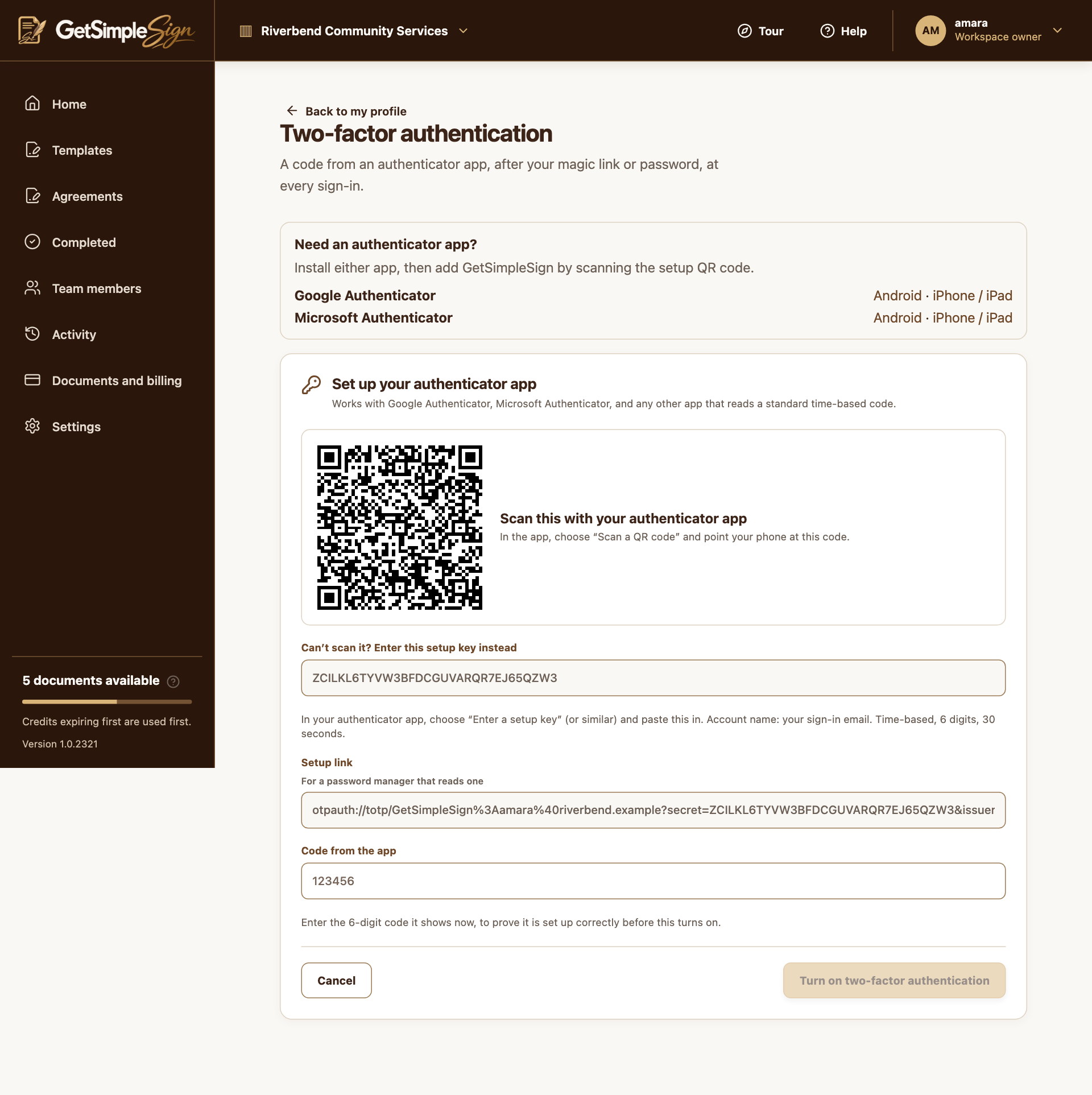
A demonstration setup QR code and key; use your own account’s code, never this example. Screenshots use a demonstration workspace. Enter the current Code from the app and choose Turn on two-factor authentication.
Save the backup codes immediately, then choose I have saved them. Codes are shown only when generated.
The account says Two-factor authentication is on. Future sign-ins require a current authenticator code or an unused backup code.
Setup is currently optional during testing when Skip for now is offered. Enabling it makes the code required on subsequent sign-ins.
An invalid code can mean the wrong account or an incorrect phone clock. Use automatic time and try the current six-digit code.