
Signing a document you were sent
For the person receiving a document — no account needed, and nothing to install.
Open the email and press the button. It works on a phone, a tablet, or a computer.
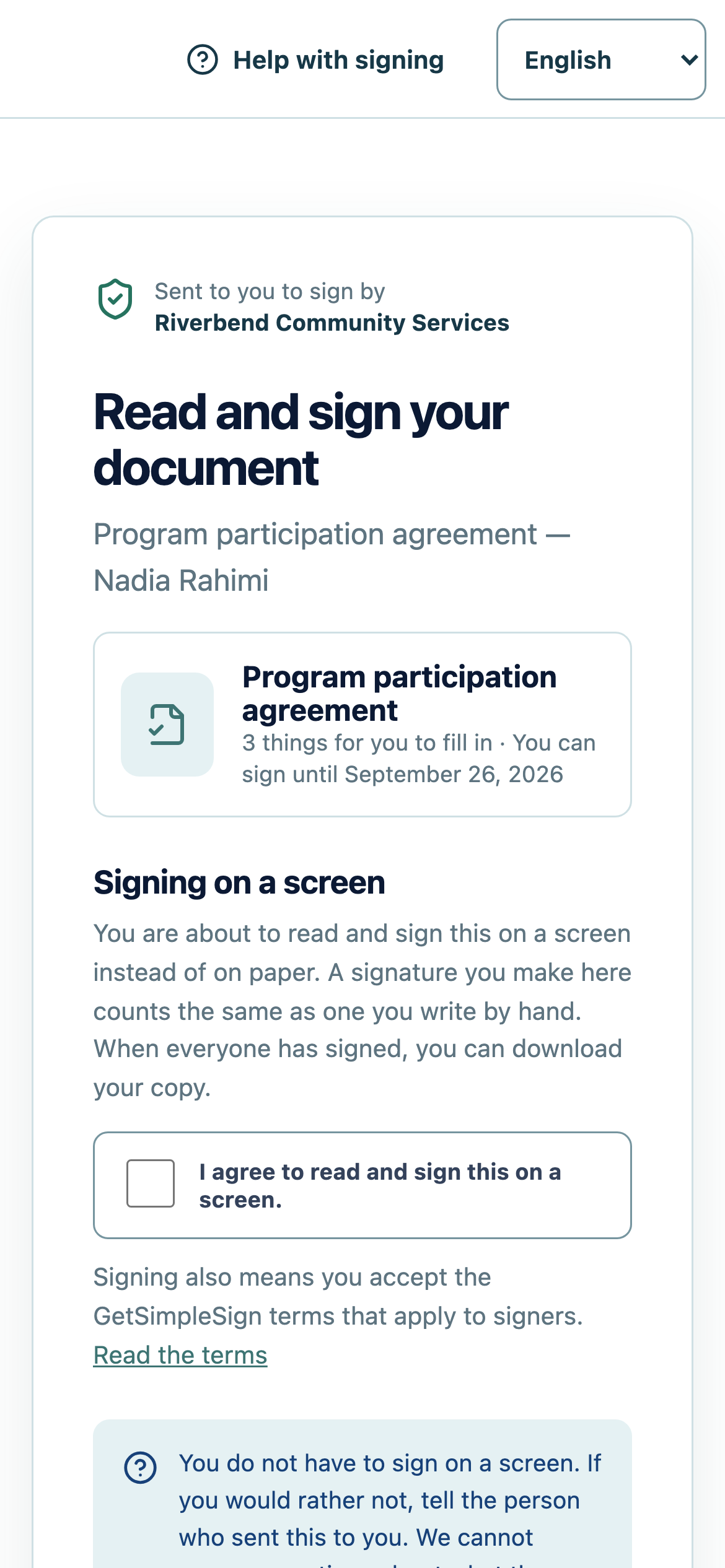
The same signing screen on a phone, which is how most people receive one. If you are asked for an access code, enter the code the sender gave you separately. Ask them if you do not have it — we cannot give it to you.
Read the short explanation about signing on a screen, then tick the box to agree. Signing on a screen counts the same as signing on paper.
 12
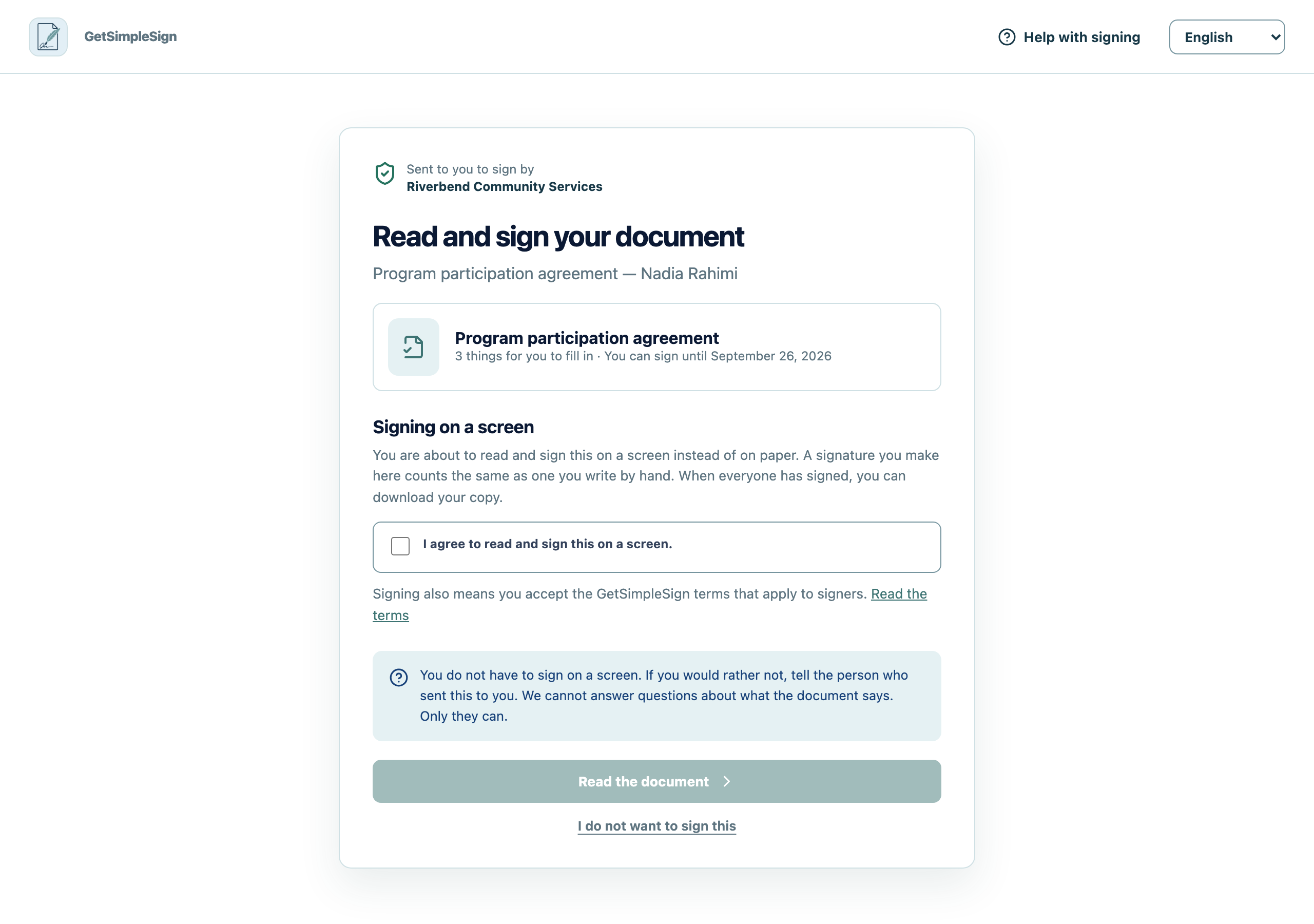
12What a signer sees first: who sent the document, an explanation of signing on a screen, the agreement to do so, and a link to the terms. - 1Signing on a screen counts the same as signing on paper. You have to agree to this before the document opens.
- 2Nobody has to sign electronically. Declining tells the sender and asks nobody else.
Read the document. Fill in anything marked for you.
Sign: type your name, or draw it with a finger or a mouse. Either counts.
Press to finish. You are offered a copy to keep — take it.
You see a confirmation, and you can download the signed document. The sender is told at the same moment.
The link says it has expired or has already been used. Ask the person who sent it for a new one.
You cannot finish. Something required is still empty — the page will say which.
You would rather not sign on a screen. You do not have to. Use Decline, or tell the sender.
Something is wrong with the document itself. Contact whoever sent it. They wrote it; we only deliver it.